

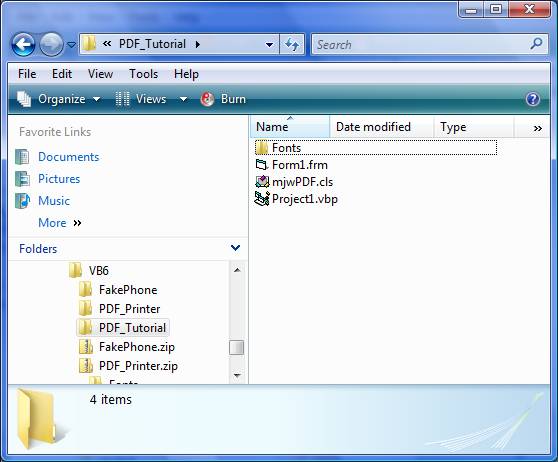
If this seems confusing, just download this VB PDF tutorial source code. It has everything zipped into one location for you to see how to set it all up.
Now that the fonts folder and mjwPDF class are in the right spot we need to add the mjwPDF class to our project:
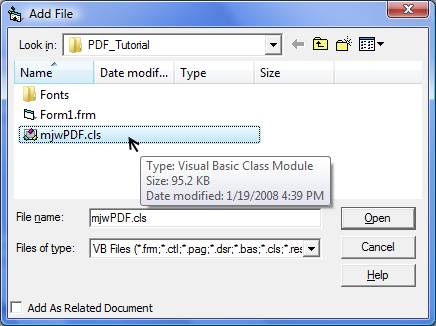
- Select Project -> Add File from the menu bar (or hit ctrl-D)
- Select the mjwPDF class and click Open
Great. Now add a button to your form. Double click on it and add the following code to it:
Private Sub Command1_Click()
    ' Create a simple PDF file using the mjwPDF class
    Dim objPDF As New mjwPDF

    ' Set the PDF title and filename
    objPDF.PDFTitle = "Test PDF Document"
    objPDF.PDFFileName = App.Path & "\test.pdf"

    ' We must tell the class where the PDF fonts are located
    objPDF.PDFLoadAfm = App.Path & "\Fonts"

    ' View the PDF file after we create it
    objPDF.PDFView = True

    ' Begin our PDF document
    objPDF.PDFBeginDoc
        ' Set the font name, size, and style
        objPDF.PDFSetFont FONT_ARIAL, 15, FONT_BOLD

        ' Set the text color
        objPDF.PDFSetTextColor = vbBlue

        ' Set the text we want to print
        objPDF.PDFTextOut _
            "Hello, World! From mjwPDF (www.vb6.us)"

    ' End our PDF document (this will save it to the filename)
    objPDF.PDFEndDoc
End Sub


0 komentar:
Posting Komentar